How Email Actually Works (From Post Office to Protocols)
- Ahtisham Asif Tantray
- Technology
- June 27, 2026
Table of Contents
Every day, 300 billion emails are sent. But what actually happens after you hit send? It involves protocols, servers, and a fascinating journey through the internet. Let’s follow that journey step by step.
Introduction
Every single day, 300 billion emails are sent across the world.
300 billion. Every single day.
But have you ever actually wondered — what happens after you hit that send button? Like, what actually goes on? The answer involves protocols, servers, and a genuinely fascinating journey through the internet. And today, we are going to follow that journey step by step. Without wasting any more time, let’s get into it.
Before Anything Else — What Even Is “Mail”?
I bet you’ve heard this word a thousand times in your life. Mail, email, postal mail — it’s everywhere. But today we’re going to break it down so completely that you’ll never have to think twice about it again.
Simply put — mail is a message that gets transported between a sender and a receiver through a delivery system. That message can be in any form. Audio, video, a document, literally anything. Any information that is being transported between a sender and a receiver — that’s mail.
Sender? The one who sends the information. Receiver? The one who receives it. Flow of information? Sender → Receiver.
Simple, right?
Now here’s the important part. This whole thing happens through a delivery system. And most people just skip over this — but this is actually very important.
So what is a delivery system?
Delivery system is nothing but a detailed, step-by-step process that defines how that message gets transported between the sender and receiver. It answers questions like:
- How will the message travel?
- What will its format be?
- Which parties will be involved in between to complete this conversation?
That’s all a delivery system is. A step-by-step guide for transportation. Sender sends — then where does the message go, then where, then where, and finally how does it reach the destination? All of that is defined by the delivery system.
Now, mail has two types:
Physical Mail and Electronic Mail.
The types are defined on the basis of the medium. If the medium is physical, we call it physical mail. If the medium is the internet, we call it electronic mail. Physical mail travels through post offices. Electronic mail always travels through the internet.
And remember — physical mail has its own delivery system. And electronic mail has its own delivery system. Both are completely different.
In this blog, we’ll understand both delivery systems, compare them, and then go deep into the backend of electronic mail to see what actually happens there.
The Delivery System of Physical Mail With an Example
A long time ago. Before the invention of the internet. Before even telephones existed.
There were two friends — Rav and Uday. Rav was living in Canada. Uday was living in India. Rav wanted to communicate with Uday and send him an important message. But they were living far apart from each other. So how was Rav going to communicate with Uday?
This was the question. And that’s where post offices came into action.
Post offices helped in long-distance communication. Here, Rav is the sender. Uday is the receiver. Let’s go step by step through how this physical mail delivery system worked:
Step 1 — Rav will convert his message into a physical form. Basically, write it down on paper.
Step 2 — He’ll wrap that message inside an envelope. And on that envelope, he’ll write two addresses — the sender’s address and the receiver’s address. The sender’s address helps Uday know who sent the mail. The receiver’s address helps the post office know where to send the mail. Both addresses are very important.
Step 3 — Rav drops the envelope into the post box.
Step 4 — The postman comes. He collects all the mail from the post box and transports them to the respected post office — here, Canada’s post office.
Step 5 — Canada’s post office processes that mail and sends it off to the destination post office — here, India. It can be transported through any medium — an airplane, a ship, whatever works.
Step 6 — Once the mail reaches India’s post office, the postman there takes that mail and drops it into Uday’s mailbox.
Step 7 — Uday comes in, opens his mailbox, sees the mail from Rav, reads it, and the communication is done.
That’s it. That is the delivery system of physical mail. A step-by-step process for how information traveled from the sender to the receiver. That’s what a delivery system means.
The Delivery System of Electronic Mail
Now let’s jump to the 21st century. We have satellites, smartphones, the internet. We are the top-notch civilization of humanity.
Same situation — Rav is still in Canada, Uday is still in India. Rav still wants to communicate with Uday. But now what?
Now Rav will simply open his computer, compose an email, and send it to Uday through the internet. And within fractions of seconds, the mail gets delivered.
That’s the power of electronic mail.
Now let’s zoom in — step by step — how does the electronic mail delivery system actually work?
Rav opens his personal computer and uses any email service provider. Email service providers are software and services that help you communicate over the internet. Gmail, Microsoft Outlook, Yahoo, Rediffmail — these are all email service providers.
When Rav composes his email, a screen appears where he fills in everything he wants to send to Uday. Here’s what’s on that screen:
- From address — The sender’s address. For example, rav@cms.com. Let’s break this down — “rav” is the username, “@” is a symbol which is shorthand for the word “at”, and “cms.com” is the domain. And this domain is simply the address of the mail server. Meaning Rav is a user who is at cms.com. If he were using Google’s service, it would be rav@gmail.com — meaning Rav is at Gmail, using Google’s mail server. The “@” sign has a pretty clean meaning — Rav is AT cms.com.
- To address — The receiver’s address. The address of whoever you’re sending the mail to. Without this, an email is like a lost boat in the ocean — floating around without ever reaching its destination. Here, the To address is uday@ums.com.
- Subject — Subject is simply the summary of the body. It helps the receiver know what the mail is about. It’s the line the receiver sees before even opening the email.
- Body — The actual message. All the information you’re trying to send goes in the body.
Once Rav clicks Send — that email from his device gets transported to the mail server.
What is this mail server? Mail server is a storage device — a computer that is on 24×7. Every day, every moment, it stays on. And it contains billions of emails from different users at the same service provider. If Rav is using cms.com, then the mail server is going to be cms.com’s — containing all the mails from all users using cms.com. Think of it as a post office, but digital.
Once the mail reaches Rav’s mail server, that mail server sends the email through the internet to Uday’s mail server. Uday was using UMS.com — so it reaches UMS.com’s mail server. Uday logs into his email service provider, sees the notification, clicks on the mail, reads the message. Done.
That is the delivery system of electronic mail.
Physical Mail vs Electronic Mail — Why Was Email Even Invented?
Let’s do a quick comparison. And also understand why email was invented in the first place.
Delivery time — In physical mail, delivery time is long. Days, sometimes weeks. But in email? Seconds. Just one click.
Cost — Physical mail has physical transportation. Rav sending a letter from Canada to India — it will cost a lot in transportation charges plus taxes. But in email? No physical transportation at all. Transportation happens through mail servers over the internet.
Scale — Physical mail needs physical infrastructure everywhere. Email scales infinitely.
That’s why email was introduced. As humanity progressed, humans wanted to take things to the next level. They wanted to improve the existing system. Email came in as the successor of postal mail.
And here’s a line I want you to remember. This is very important — in technology and in the entrepreneurial world:
When an existing system fails to fulfill the current need, a new system tries to replace it.
That’s exactly what happened. Postal mail had flaws. Email came and replaced it. And if in the future email itself becomes insufficient for our advancing civilization? Human civilization will create something even better. Necessity is the mother of innovation.
Everything So Far? That Was Just the Trailer.
Everything we covered till now is technically the frontend of email. The part you see and experience.
Now the real question becomes — what actually happens behind the scenes?
- What happens the moment you click send?
- How do mail servers communicate with each other?
- How does that email get transported over the internet?
- How does the receiver actually receive the email?
These are the questions that must be answered to have a complete understanding of emails.
So ladies and gentlemen — the concepts we’ve learned till now were just a trailer. The real movie starts right now.
Let’s go.
Basic Terminology You Need to Understand First
Before we go into the backend, we need to clear up some basic terminology. Otherwise it’ll get confusing later on. Let’s go through them one by one.
Term 1: User Agent
The name sounds complicated. But honestly? It’s incredibly simple. Give me one second and you’ll tell yourself how easy this is.
A User Agent is a software — an application — that connects the user to the server. That’s it. It sits between the user and the server and connects both of them together.
If you understand the word “agent” fundamentally, you’ll get it on your own. An agent is an intermediate that sits between two things and helps establish a connection between those two parties. Here, the software sits between the user and the server. And what does it do? It connects the user and the server together.
That’s simply what a User Agent is.
User agents include applications and software like Gmail (which you use every day), Outlook (which PC users use), Thunderbird, Firefox Mail. Any software or application that you use to access your emails — that is your user agent. And its job? It helps you connect to the server.
User Agent — clear? Good. Let’s move on.
Term 2: SMTP
SMTP — this is the main culprit behind the entire email system. This is the most important thing.
SMTP stands for Simple Mail Transfer Protocol.
Now what is a protocol? A protocol is simply a set of rules that is followed while transporting data. Whenever we create a protocol, we define rules inside it — how should that data transmit? In what format? Through what process? Who defines all of this? The protocol.
So simply put — SMTP is a rule, a protocol, that defines how an email should travel over the internet. It’s the rulebook for email transmission.
That’s all SMTP is.
Term 3: Mail Server
We already touched on this, but let’s be precise now.
Mail servers are storage devices — computers that run 24×7 and store all the emails of users. If the user is using Gmail, Google has its own mail server. If the user is using Outlook, Microsoft has its own mail server.
Now here’s an important point. Mail servers have two types:
SMTP Client — The server from which the mail is going out. The one that is actually sending the email.
SMTP Server — The server which receives the email. The one the mail is going into.
In short:
- The server from which the mail is leaving → SMTP Client
- The server into which the mail is arriving → SMTP Server
One more thing — these are just labels we give for understanding the process. The same physical server can be an SMTP Client in one scenario and an SMTP Server in another, depending on the direction of the flow. When Rav sends the email, his server is the SMTP Client. When Uday sends a reply, his server becomes the SMTP Client. It all depends on who’s sending.
Term 4: Protocols: Push vs Pull
In the email system, SMTP is not the only protocol being used. There are actually 4 protocols involved.
SMTP is a push protocol — and it is always used, no matter what.
But when the receiver wants to access the email, they use pull protocols. And there are three pull protocols:
- POP3 (Post Office Protocol 3)
- IMAP (Internet Message Access Protocol)
- HTTP
Now what do push and pull actually mean?
Push protocol = When data needs to move forward. The data is being pushed — from sender to server, from server to another server. SMTP does this.
Pull protocol = When the receiver needs to retrieve the email. They pull the email from the server for themselves.
One important note — keep HTTP in a slightly separate mental category from POP3 and IMAP. We’ll see why shortly.
SMTP’s job ends when the email reaches the SMTP Server. After that, the receiver uses a pull protocol. The choices are POP3, IMAP, or HTTP — depending on the situation.
Term 5: Types of User Agents: Web-Based vs Client-Based
User agents have two types — and this distinction is very important.
Web-Based User Agent — Applications that you access through the browser. You don’t download them from the Play Store or App Store. You just open the browser and use them. Example: Gmail (open gmail.com in your browser).
Client-Based User Agent — Software that you first download onto your machine. You install it on your computer or phone first, and then you use it. Example: Outlook, Thunderbird.
Why does this distinction matter? Because both use different protocols.
When you access a web-based application through the browser — HTTP protocol is used (or HTTPS, which is just the secure version of HTTP).
Client-based applications use their own protocols — SMTP, POP3, IMAP. Not HTTP.
HTTP protocols are only used by web-based applications. That’s the fundamental difference between web-based and client-based.
Complete Backend of Email
All the terminology is clear now. Let’s see the full backend in both scenarios. Rav is sending an email to Uday — and we’re watching from behind the scenes.
Scenario 1: Client-Based Application (e.g., Outlook)
Rav has Outlook installed on his computer. Uday also has Outlook installed on his computer.
Step 1 — Rav opens Outlook, logs in, composes his email. “Hey Uday blah blah blah.” Before clicking the send button — that email is only on Rav’s computer. It hasn’t reached the mail server yet.
Step 2 — When he hits Send — a TCP/IP connection gets established between Rav’s computer and Rav’s mail server. Whenever communication happens over the internet, TCP/IP protocol is always used as the foundation. On top of TCP/IP, in the application layer, we use specific protocols like SMTP.
Step 3 — Connection is established. Now how will they communicate? Through SMTP protocol. The email travels from Rav’s computer to Rav’s mail server — through SMTP. This mail server is Outlook’s server — meaning Microsoft’s mail server. This server is now the SMTP Client — because the mail is leaving from it.
Step 4 — Now the SMTP Client needs to send the email to Uday’s mail server. Again, a TCP/IP connection is set up — this time between the SMTP Client and Uday’s mail server. And the data travels through SMTP again. The server that is receiving the email — that is the SMTP Server.
Step 5 — The email has now reached Uday’s SMTP Server. The push protocol’s job is done. SMTP’s scene is over.
Step 6 — Now Uday needs to access the email. A pull protocol will be used. Uday has a client-based application (Outlook) — so HTTP won’t work here. Two options: POP3 or IMAP.
If POP3 is used — the email gets downloaded onto Uday’s computer. It pops off the server — meaning it gets deleted from the server. Now it only lives on his local computer. (There are settings to change this behavior — we’ll cover that shortly.)
If IMAP is used — the email does not get downloaded. Uday simply sneaks into the server to access the email. The email stays on the server. He just reads it there.
Scenario 2: Web-Based Application (e.g., Gmail)
Now let’s see the same email flow when both are using Gmail.
Step 1 — Rav opens gmail.com in his browser. Composes the email. Hits send.
Step 2 — TCP/IP connection establishes.
Step 3 — The email travels from Rav’s browser to Gmail’s SMTP Client — but this time not through SMTP. This time it goes through HTTP (or HTTPS). Why? Because he is using a web-based application. Web communication = HTTP.
Step 4 — Email reached the SMTP Client. Now from the SMTP Client to Uday’s SMTP Server? Same as before — SMTP protocol + TCP/IP. The server-to-server communication in the middle stays exactly the same.
Step 5 — Email reached Uday’s SMTP Server.
Step 6 — Uday is also using Gmail (web-based). So when he accesses the email — he will not use POP3 or IMAP. He will use HTTP/HTTPS. Because it’s web-based.
Simple rule to remember:
- Client-based on sender side → SMTP for pushing email to the server
- Web-based on sender side → HTTP for pushing email to the server
- Client-based on receiver side → POP3 or IMAP for retrieving email
- Web-based on receiver side → HTTP for retrieving email
- Server to server (always, no matter what) → SMTP
And mixing is totally fine too. Rav can use Gmail and Uday can use Outlook. No issue at all. Whoever is using what on their side — that’s the protocol they’ll use. The communication in the middle between servers stays the same.
POP3 vs IMAP — Which One Should You Use?
This is a question that confuses a lot of people. Let’s clear it up.
POP3 has two modes:
Mode 1 — Download and Delete — The email gets downloaded to your device. It gets deleted from the server. Now it only lives on your machine.
Mode 2 — Download and Keep — The email gets downloaded to your device, and it also stays on the server. Both places.
IMAP — The email doesn’t get downloaded at all. You simply access it directly on the server. The email stays on the server.
Now which one should you use?
Use IMAP if:
- You have multiple devices — phone, laptop, tablet
- You want your emails to stay in sync across all devices — read on one device, it shows as read on all of them
- You want your folders (Primary, Important, etc.) to be consistent everywhere
- You’re on limited data — IMAP doesn’t require downloading the full email, so it uses less data
Use POP3 (Download & Delete) if:
- You’re very strict about privacy and don’t want your emails sitting on a server
- You only use one single device
Now what’s the difference between POP3 Mode 2 (Download & Keep) and IMAP, since both keep the email on the server? Here’s the key difference:
In POP3, folders are created on your local device. If you have two devices and you put an email in the “Primary” folder on one device — the other device has no idea. There’ll be a mismatch.
In IMAP, folders are created on the server. If you move an email to “Important” from your phone — that change automatically syncs across every device. Phone, laptop, everywhere.
So the simple takeaway:
POP3 needs active management. IMAP is management-free.
If you don’t have extreme privacy concerns — IMAP is always the better choice. I always prefer IMAP.
Practical: How to Change Your POP/IMAP Settings in Gmail
Skip the video to 34:47 to watch how to chnage protocol settings in your Gmail.
If you want to change which protocol your email uses for retrieval, here’s exactly how:
- Log into your Gmail account
- Click on Settings → “See All Settings”
- Go to the “Forwarding and POP/IMAP” tab
- Enable POP or IMAP — whichever you want
One important note — if you’re accessing Gmail through gmail.com in a browser, these settings don’t apply to that. You’re already using HTTPS by default there. These settings only kick in when you log into your Gmail account inside a client-based application like Outlook or Thunderbird. There, these settings decide whether retrieval happens through POP3 or IMAP.
Everything in One Place — Quick Summary
| Component | What It Does |
|---|---|
| User Agent | Software that connects the user to the server (Gmail, Outlook, etc.) |
| SMTP | Push protocol — moves the email from sender’s server to receiver’s server |
| SMTP Client | The server from which the mail is going out |
| SMTP Server | The server into which the mail is arriving |
| POP3 | Pull protocol — downloads the email to the local device |
| IMAP | Pull protocol — accesses the email directly on the server without downloading |
| HTTP/HTTPS | Used by web-based apps — for both sending and receiving |
| TCP/IP | Foundation layer — every internet communication runs on top of this |
That’s the complete picture of how email works.
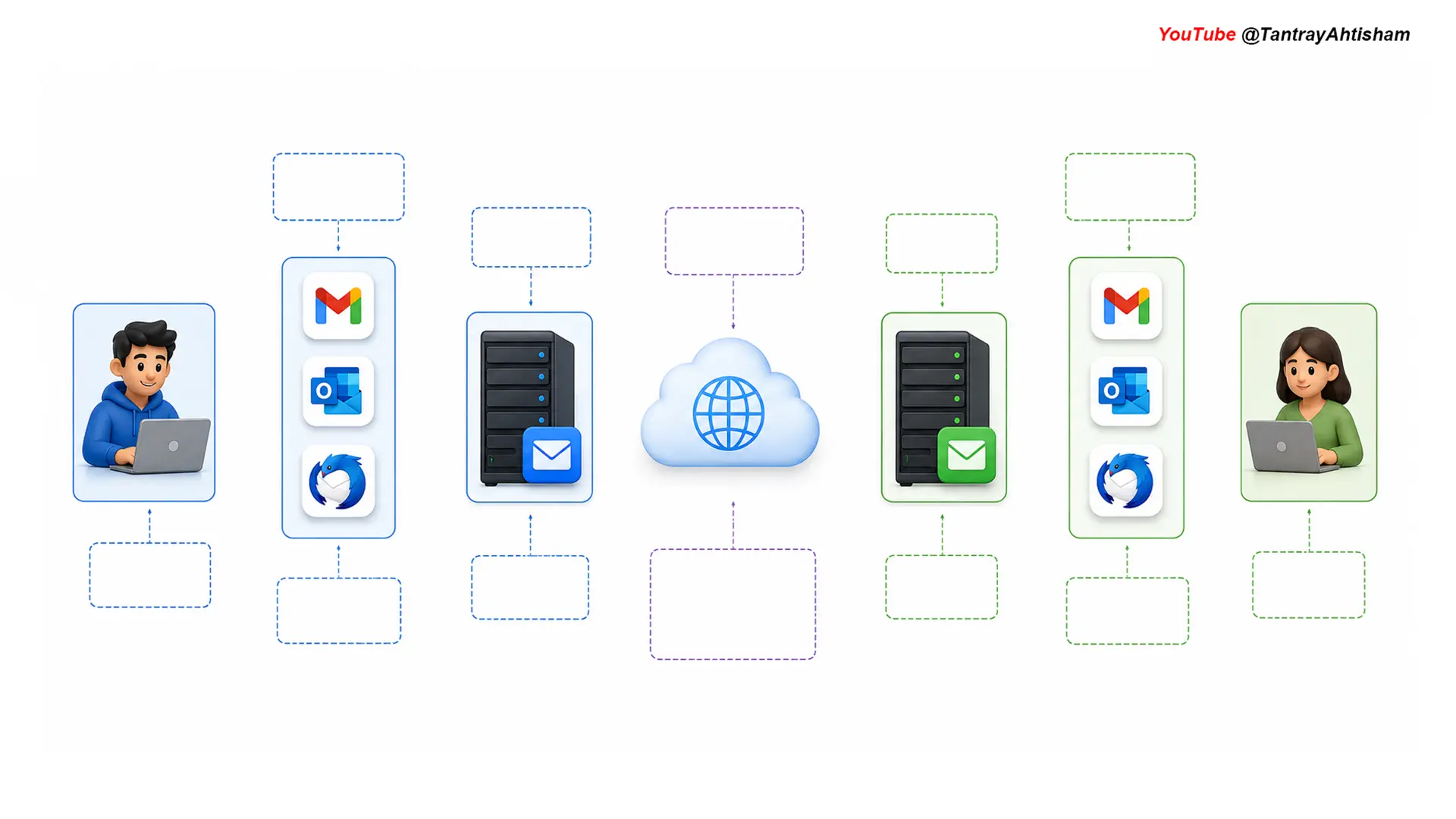
Complete the above workflow of backend working of email to know whether or not you have mastered the backend.
The next time someone asks you how email works — your answer won’t just be “it goes through the internet.” You’ll understand the full picture — the protocols, the servers, the delivery system, how physical mail compares to electronic mail, and exactly what happens the moment you hit send.
And one last thing — if you’re using a client-based application, go check your settings and make sure IMAP is on. Trust me, your life will be easier.
Keep learning, keep growing.
Ahtisham Asif Tantray signing off!